Search

Thursday, June 23, 2011

Hide Folder Using Command Prompt - 4

This final method allows users to hide files in a JPEG image:

hide files in JPEG

    1. Create a folder in C:, e.g. C:Folder1.

    2. Put all the files you want to hide in there, as well as a JPEG image that you would like to hide the files in.

    3. Select all of the files you want to hide, and create a ZIP or RAR file with them using a program like WinRAR, WinZip, 7Zip, etc.

    4. Now you should have your archive next to your files that you want to hide, even though they are in the archived file already, with the JPEG image you would like to hide all of this in.

    5. Go to “Start,” “Run,” and type: cmd.

    6. Now type: cd , then type: cd Folder1. (Of course, replace Folder1 with the name of your folder.)

    7. Type the following: copy /b myimage.JPG + archivedthing.rar myimage.jpg

    (Note: Replace the name “myimage” with the name of your image, and replace “archivedthing” with the name of your compressed file.)

    8. You should receive a response similar to the following: “1 file(s) copied.”

    9. To find the files in your image, all you need to do is right-click on the image and select “Open With…” and select “WinRAR” or the name of the program you used to archive the original files.

    Windows Hide folders

    Hide files in Windows

    source : http://www.makeuseof.com

Hide Folder Using Command Prompt - 3

1. Create a folder in a drive for easy access, e.g. C:. (Name it something related to the Control Panel, e.g. Users.)

2. Create a new file in Notepad and copy and paste the following into it:


ren Users Users.{21EC2020-3AEA-1069-A2DD-08002B30309D}

3. Replace “Users” with the name of the folder you created and save the file as loc.bat.

(You should now be able to see your folder and the loc.bat file, with the loc.bat in the same directory as the folder Not in it.)

4. Now, right-click and create another text file. Copy and Paste the following into it:

ren Users.{21EC2020-3AEA-1069-A2DD-08002B30309D} Users
(Make sure to replace the word “Users” with the name of your folder.)

5. Save it as key.bat.

6. Now you should see the loc.bat and the key.bat files in the same directory as the folder you created.

7. Now, all you need to do is double-click on the loc.bat file and the folder should have an icon that looks like the control panel. If you click on the folder it should redirect you to the Control Panel and thus you have locked the folder.

8. Of course, to unlock it, simply double-click on the key.bat file and the folder should turn back into the folder you first created.

lock files in windows

source : http://www.makeuseof.com

Hide Folder Using Command Prompt - 2

This method, unlike the previous one, hides an entire drive instead of individual files or folders:

(Before you ever use the registry I HIGHLY RECOMMEND backing up your registry with a tool similar to Registry Tool or CCleaner. You may as well use a manual method similar to this.)

1. Go to “Start,” “Run,” and type regedit.

2. When the registry editor loads, navigate to: HKEY_LOCAL_MACHINESoftwareMicrosoftWindowsCurrentVersion
PoliciesExplorer


3. Right click on “Explorer” and select “New” and “DWORD Value.”

4. Name the value NoDrives and select “Decimal” as the base.

5. In the value type the number that corresponds with the drive below:

(E.g. If you would like to hide drive E, type 16. You may also hide multiple drives by adding the two numbers. E.g. If you would like to hide drives E and G, 16+64=80.)

6. Now, after you restart your computer, you should not be able to see the drive.

source : http://www.makeuseof.com

Hide Folder Using Command Prompt - 1

here is some tips to hide folder from cmd (command prompt).
steps.
  1. Open your cmd (press "window + R" on your keybord and type "cmd")
  2. Go to the drive where the folder you want to hide ( e.g. i want to hide folder fun in the folder Ent in the drive D ) type this command D: press enter
  3. type this syntax cd Ent hit enter again
  4. then finally attrib +R +A +S +H fun

to open the folder again just repeat steps 1 to 3 then for the last step change + to -
the syntax will look like this attrib -R -A -S -H fun

Get Smart with Smart Objects

Compatibility: Photoshop CS2, CS3

Photoshop has been moving towards letting users do everything non-destructively. The biggest advantage digital artists have over artists that use other mediums is the ability to go back and fix things with out having to start over. Smart Objects is the latest tool in our powerful arsenal that allows us to do a whole lot very quickly without any fear of doing any irreversible damage. As all other tutorials on this site, we’ll go ahead and learn about Smart Objects by jumping right into Photoshop to explore this topic.

Smart Objects are Links

Those who have some experience with creating web pages will be familiar with the /image tag. When one wants to add an image into a website, they will use the tag and link to an image. Then they are free to change certain image properties such as the size or borders using CSS. They are also able to create multiple images by adding multiple tags on to a web page. This creates multiple instances of the same image on to one web page. If someone edits the actual image file that is being linked to using the tag, then that edit will be reflected on all the instances of that one file.

Step 1: Opening the Image

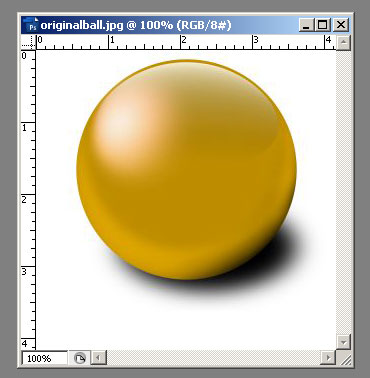
Step 1:Choose an image to work with.

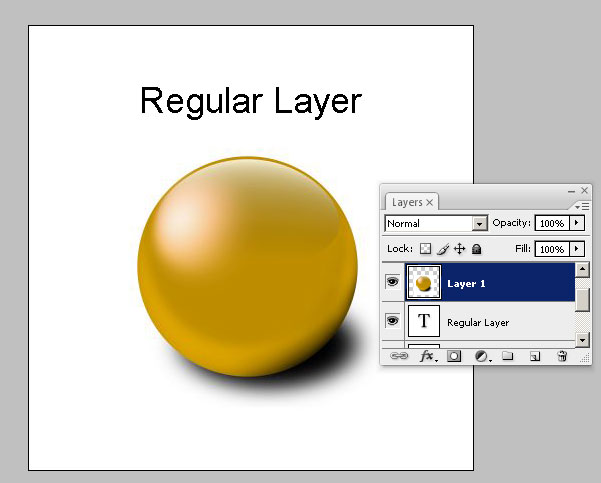
Next, I opened a new blank image by going to File > New. Next, using the move tool, I clicked on the originalball.jpg layer and dragged it into the new image. This created the following:

Step 2: Here is a regular layer

Step 2: Here is a regular layer

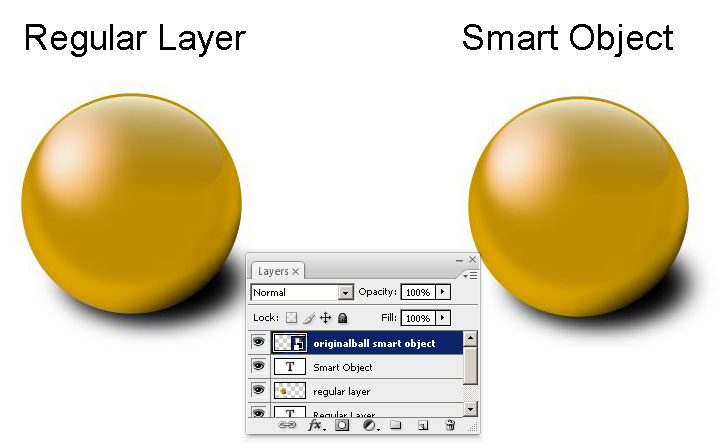
After increasing the canvas size a bit, I added a Smart Object next to the regular layer. To do so, go to File > Place and choose the originalball.jpg image. This created the following:

Step 3: Add a smart object

Step 3: Add a smart object

They look identical at the moment. I can see the layers palette. The icon for the Smart Oject is different than a regular layer.


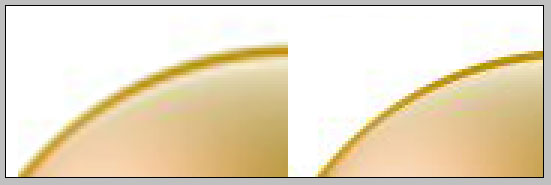
Next, let’s try resizing both the regular layer and Smart Object multiple times. Transform both objects to half their size, then resize both of them to three times their size, then resize them back to their original size. Now if we inspect the edges of the regular layer and the smart object, this is what we find:

The Smart Object retains its original sharpness and quality

The Smart Object retains its original sharpness and quality

You can clearly see, that the Smart Object edges are just as good as the original while the regular layer has degraded and blurred after just a few transformations. This is because a smart object resamples the original image during each transformation while a regular layer only transforms the current state of the layer and causes degradation.

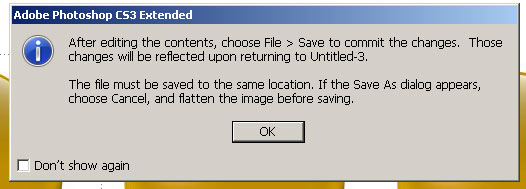
You can also add multiple copies of a Smart Object on to the canvas by right clicking on a Smart Object Layer in the layers palette and then clicking on “Duplicate Layer”. Next if you double click on one of the copied Smart Object Layers in the layers palette, it will open that layer in a new window and give you the following warning:

Double click on Smart Object layer to edit

Double click on Smart Object layer to edit

Click on “OK” and the original image will open up in a new window. Edit that image and then click on File > Save. Next, return to your image with the smart object, and your change will be reflected in all the instances of the Smart Object. This is useful for example when you may be editing buttons for a navigation menu.

You can also convert any existing layer into a Smart Object by right clicking on the Layer in the Layers palette and clicking on “Convert to Smart Object”. The layer can then be used as a Smart Object.

Also, you can not use the paint brush directly on a Smart Object. You must either rasterize it or double click on Smart Object Layer in the Layers palette in order to directly edit it.

source : photoshoptips.net

Russian Paintings

by Fred Showker

One might see these works of art -- when compared to their photographic counterparts -- and assume these are Photoshop or Painter work-overs. And, they very well may be. These days, there is a proliferation of artists entering the market who specialize in converting photos to paintings or art. But these are quite different. They're painted from scratch using oil on canvas.

portrait of a young girl

Arthur Brahinskiy

This portrait of a young girl by Arthur Brahinskiy, reveals the artist's deep study and influence from the works of the Dutch Masters* and painters like Claude Lorraine*, and Sandro Botticelli*. He takes rather ordinary starting images and transforms them into classic works of art.


Study his classic use of color in concert with light and shadow. Also note his pure insight into time and place -- setting the portrait in a place that reinforces the mood, emotions and texture of the subject.

girl on a rock painting compared to the original photograph

This portrait shows how Brahinskiy makes all the right decisions about what details to eliminate, which ones to exaggerate, and how to add warmth to flesh tones. Note the original photograph he worked from, and the finished painting. Here, you'll note the flowers have been brought forward and emphasized -- yet much of the detail has been omitted. The handling of fine detail, the hands, the feet, jewelery and that lovely flowing fabric of the blouse makes this almost photographic. Such detail lets the viewer believe that this is a real, living young woman.

Arthur has a fascination with the human body. While his extensive portfolio is primarily nudes and portraiture, he easily handles spectacular landscapes in the tradition of the romanesque masters. This "Landscape" reflects handling of light, shadow, color and texture in exquisite harmony.

In this before and after, we see those values from the landscape above, reflected in play -- yet once again Arthur has taken great liberties in those decisions of what to modify from reality and which to keep. Again, note the use of light sources and the transparency as light bathes the scene in warmth. These elements along with the way he weaves the hair into the dream-like background makes these paintings masterly.

Russian Paintings.net writes:

QUOTE We are pleased to present the artist whose works require very profound analysis. Without any doubt his pieces of art belong to the new way of thinking in painting. We can easily observe how various his pictures are.
The first trend he's practicing is the landscape that resembles very much the pictures of the old masters. Two elements are intermingled there: mystical appeal of these works and clearly expressed aspiration to perform in the way proposed by ancient schools and masters. Only the greatest artists of the ancient times could keep this natural balance of power. Looking at these vivid colors, presented forms and clear lines of the masterpieces created in the happiest times we feel the spirit of the Renaissance settling in our minds.END QUOTE

Arthur Brahinskiy was born in 1965, and graduated from the art school in 1982. His exibitions have been seen all over western Europe. While browsing his gallery, pay close attention to light sources, texture and the subtle ways he adds a touch of fantasy to an otherwise realistic depiction of the subjects.

Gallery: Arthur Brahinskiy at www.russianpaintings.net

source : www.graphic-design.com

Share

Twitter Delicious Facebook Digg Stumbleupon Favorites More